Learning ZBrush Software in 21 Days

Eric Walker
November 22, 2025ZBrush can feel intimidating at first. The interface looks dense, there are new terms like “Dynamesh,” “Subtools,” and “ZRemesher,” and it doesn’t behave like traditional 3D software. The good news: if you follow a focused plan, you can get comfortable with ZBrush in just 21 days.
Below is a clear 3‑week roadmap to help you go from total beginner to creating your own sculpted character or creature in ZBrush software.
High‑Level Goals for 21 Days
- Week 1: Learn the interface and basic sculpting.
- Week 2: Work with anatomy, hard surface basics, and more advanced tools.
- Week 3: Create a full project from start to finish.
Aim for at least 1–2 hours per day. Consistency matters more than long, random sessions.
Week 1: Getting Comfortable with ZBrush (Days 1–7)
The goal this week is to remove the fear of the software. You’ll learn where things are, how to move around, and how to shape simple forms.
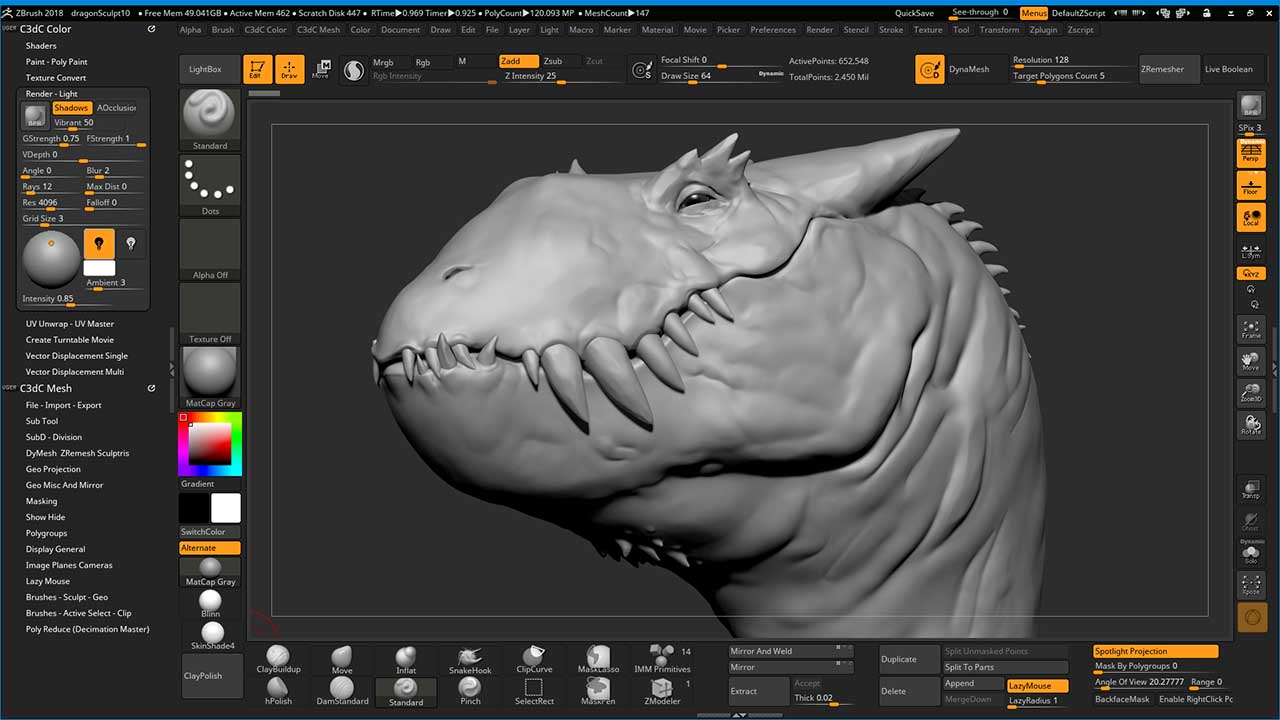
Day 1–2: Setup and Interface
Focus on:
- Installing ZBrush and setting preferences.
- Understanding the main areas:
- Canvas (where you sculpt).
- Tool palette (your 3D model).
- Subtool panel (your model’s parts).
- Brushes, Stroke, Alpha, Material, and Color menus.
- Navigation:
- Rotate: Alt + left mouse (then release Alt).
- Pan: Alt + left mouse (keep holding Alt).
- Zoom: Alt + right mouse or Ctrl + right mouse (depending on settings) or mouse wheel.
- 2.5D vs 3D:
- Learn the difference between dropping a tool to canvas (2.5D) and being in Edit mode (3D).
- Always remember: After dragging a tool on canvas, press “T” (Edit) to sculpt in 3D.
Practice:
- Open the default sphere.
- Rotate, zoom, and pan around it.
- Experiment with QuickSave and file saving (Tool > Save As and File > Save As).
- Customize your UI a little (move commonly used buttons; Preferences > Config > Store Config).
Day 3–4: Core Sculpting Tools
Focus on:
- Basic brushes:
- Standard, ClayBuildup, Move, Smooth (Shift), DamStandard, Inflate.
- ZAdd vs ZSub:
- ZAdd: adds volume.
- ZSub: subtracts volume.
- Symmetry:
- Press “X” to turn symmetry on/off.
- Dynamesh:
- Tool > Geometry > Dynamesh.
- Understand that Dynamesh redistributes polygons so you can keep sculpting without stretching.
Practice:
- Take a sphere and sculpt:
- A simple head shape: block in a rough skull, jaw, and neck.
- A simple creature or blob with legs and arms.
- Use Dynamesh to maintain even topology when your mesh stretches too much.
Day 5–6: Subtools and Basic Workflow
Focus on:
- Subtools:
- Think of Subtools as separate objects in the same scene (eyes, teeth, armor, etc.).
- Learn to add, duplicate, rename, and hide/show Subtools.
- Gizmo 3D:
- Use it to move, rotate, and scale individual Subtools.
- Learn to align objects and adjust pivot.
- Insert brushes (IMM brushes):
- Insert spheres or other shapes as new Subtools (or into existing geometry).
Practice:
- Create a simple character bust:
- Head, neck, simple ears, and a basic nose and mouth.
- Add separate spheres as eyes using Subtools.
- Position them with Gizmo 3D.
Day 7: Polishing Week 1 Skills
Focus on:
- Review navigation, brushes, Dynamesh, and Subtools.
- Try to sculpt something from imagination:
- A simple alien head, stylized skull, or cartoon character.
- Don’t worry about perfection. The goal is comfort with the tools.
By the end of Week 1, you should:
- Be comfortable moving around the model.
- Know how to use basic brushes.
- Understand Dynamesh.
- Work with multiple Subtools.
Week 2: Going Deeper (Anatomy, Hard Surface, and Detailing) (Days 8–14)
This week, you’ll learn to add more structure to your work and get closer to production‑style workflows. One of the prominent areas for Zbrush is in Jewelry Designs. Many institutes teach the software as part of Jewellery CAD design Courses curriculum.
Day 8–9: Anatomy Basics (Even for Non‑Character Artists)
Focus on:
- Simple anatomy landmarks:
- For heads: eye line, nose, mouth, jaw, and skull shape.
- For bodies: ribcage, pelvis, shoulders, knees, and overall gesture.
- Reference:
- Collect a few reference images for heads or bodies.
- Keep them open on a second screen or use ZBrush’s reference features (e.g., Spotlight).
Practice:
- Sculpt a basic human head from a sphere:
- Block in the big shapes: skull, jaw, neck.
- Place eyes, nose, and mouth roughly in correct proportions.
- Use Move and ClayBuildup to push and pull forms.
- Focus on silhouette and large shapes, not tiny wrinkles.
Day 10–11: Hard Surface Basics
Focus on:
- Using ZModeler:
- Practice with simple polygon modeling inside ZBrush.
- Learn to extrude faces, insert edges, and bevel.
- Creasing and Polygroups:
- Use Polygroups for organizing different parts of a mesh.
- Crease edges for sharper, hard surface forms.
- Booleans:
- Use Live Boolean to combine or subtract shapes.
- Great for making simple helmets, armor, or sci‑fi shapes.
Practice:
- Create a simple hard surface object:
- A sci‑fi helmet, a boxy robot head, or a stylized weapon.
- Combine:
- Dynamesh for early blocking.
- ZModeler and Booleans for sharp details.
Day 12–13: ZRemesher, Subdivision, and Detail
Focus on:
- ZRemesher:
- Use it to generate cleaner topology for your mesh.
- Great before adding fine details.
- Subdivision levels:
- Lower levels: adjust big shapes.
- Higher levels: add small details.
- Detail passes:
- Use brushes like DamStandard for sharp lines and wrinkles.
- Try surface noise and alphas for texture.
Practice:
- Take an existing sculpt from Week 1:
- Use ZRemesher to clean it up.
- Add subdivision levels.
- Add medium and fine details: folds, creases, surface texture.
Day 14: Rendering and Presentation Basics
Focus on:
- Materials and colors:
- Try MatCap and SkinShade materials.
- Learn Polypaint basics (painting directly on your model).
- Basic lighting:
- Adjust lights to show forms clearly.
- BPR (Best Preview Render):
- Do a simple render.
- Export:
- Export still images of your sculpt.
Practice:
- Set up a simple turntable or a few still images of your best sculpt so far.
- Try different materials and lighting to see how it changes the feel of the model.
By the end of Week 2, you should:
- Understand basic anatomy for sculpting.
- Have a feel for hard surface tools.
- Know how to use ZRemesher and subdivision.
- Be able to do simple renders of your work.
Week 3: Your First Complete Project (Days 15–21)
Now it’s time to put everything together with a focused project. The goal is not perfection, but a full start‑to‑finish workflow.
Day 15: Choose Your Project
Pick something achievable for your current level:
- A stylized character bust (cartoon head and shoulders).
- A simple creature (goblin, alien, or monster head).
- A sci‑fi helmet or stylized weapon.
Criteria:
- Not too complex: avoid full, detailed, realistic humans right away.
- Has clear reference: collect 5–10 images from different angles and styles.
Day 16–17: Blockout
Focus on:
- Big shapes only:
- Use spheres and simple primitives.
- Use Dynamesh to merge and sculpt.
- Silhouette:
- Check the model from different angles.
- Make sure the silhouette is strong and reads well.
- Proportions:
- Compare with reference frequently.
- Use the Move brush for big adjustments.
Practice:
- Spend these two days just getting the main forms right.
- Don’t rush to small details.
Day 18–19: Refinement and Secondary Forms
Focus on:
- Refining anatomy or structure:
- Clarify muscles, wrinkles, armor plates, or panel lines.
- Clean topology:
- Use ZRemesher and subdivision levels once the big shapes are solid.
- Add secondary forms:
- Eyelids, lips, armor layers, straps, horns, etc.
Practice:
- Work from big to medium details.
- Constantly orbit around the model to avoid “front‑view only” mistakes.
Day 20: Detail and Polypaint
Focus on:
- Adding surface detail:
- Use DamStandard, ClayBuildup, and alphas for skin, scratches, or panel lines.
- Polypaint:
- Give your model a base color.
- Add variation: darker in creases, lighter on bony areas or edges.
- Don’t overdo it:
- Too much noisy detail can ruin the readability of your sculpt.
- Keep detail where it matters most (face, focal areas).
Day 21: Final Presentation
Focus on:
- Materials:
- Choose a material that suits your model (SkinShade, metal, or a neutral clay).
- Lighting:
- Set up 2–3 lights to show forms clearly.
- Render:
- Use BPR to produce a few high‑resolution renders.
- Try different angles, including a three‑quarter view (often the most appealing).
- Export and review:
- Save your renders.
- Compare your final result with your original references.
- Note what you did well and what you struggled with.
By the end of Week 3, you should:
- Have a complete ZBrush project from rough blockout to final render.
- Understand the basic workflow: blockout → refine → retopo/subdivide → detail → color → render.
- Feel much more confident opening ZBrush and starting new sculpts.
Tips to Stay Motivated During the 21 Days
- Keep sessions short and focused:
- It’s better to do 1–2 focused hours daily than 6 hours once a week.
- Save versions:
- Save different versions of your file (v01, v02, etc.) so you can go back if needed.
- Don’t compare to pros:
- Use professional work as inspiration, not as the standard for your first 21 days.
- Ask for feedback:
- Post your progress in online art communities for constructive critique.
Final Thoughts
You won’t master ZBrush in 21 days, but you can absolutely:
- Learn the interface.
- Understand core tools and brushes.
- Build solid habits and workflows.
- Complete a full sculpted project you can be proud of.
If you stick to this plan and keep practicing after these 21 days, you’ll keep improving quickly. The most important thing is simple: open ZBrush software every day, experiment, and keep creating.
All Tags
Loading...
Loading...